
How to redesign a room from a photo
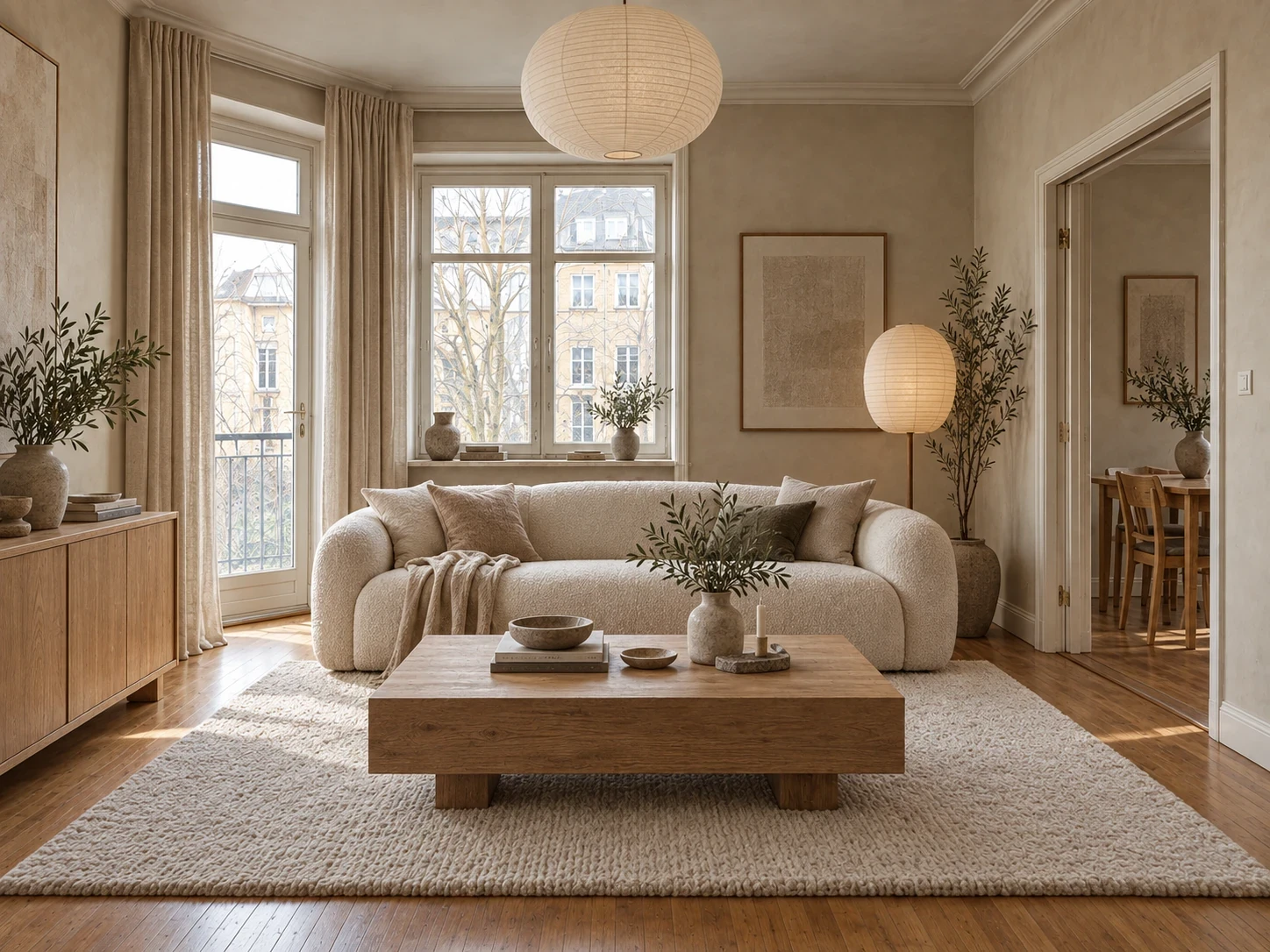
A useful redesign starts with a specific decision. Do you want a quieter palette, a better furniture arrangement, or one new sofa? A photo visualization helps compare those directions, but it cannot decide your budget or measure the room for you.
Photograph the space you actually want to change
Use a clear photo with the main walls, windows and furniture visible. A corner view often gives more context than a close-up. Avoid heavy filters and include the floor if its relationship with furniture matters. Keep the original so you can check which details the output changed.
Before uploading, remove private documents and anything you do not want included. Use photos you own or have permission to use.
Separate the things to keep from the things to change
Write a short brief: “Keep the oak floor and sofa; try warm off-white walls and simpler decoration.” Constraints make comparisons more useful. If everything changes at once, it becomes harder to identify which decision improved the room.
Use Styles for an overall look, Swap for a particular item, and Surfaces for finishes. The room redesign feature also supports inspiration photos. Pick references with a clear palette or material direction rather than expecting an exact copy of another room.
Compare two directions with the same starting photo
Try a light, minimal scheme and a warmer, more layered scheme. Compare the windows, furniture scale and walking routes with your original photo before judging the decoration. A beautiful result that removes a doorway is not a useful plan.
The illustration above is an illustrative design concept, not a documented customer renovation. Use it to understand a design direction, not as proof that your room will look identical.
Refine the decision, then leave the screen
A focused refinement such as “keep the rug and make the curtains lighter” is easier to assess than another complete overhaul. Each new visualization or refinement uses another design from your allowance.
Create a shortlist of the elements you actually want to change. Check dimensions, order material samples and estimate costs. For a new sofa, follow the furniture visualization guide before purchasing.
Start in Homeful
Homeful is available on iPhone with iOS 16.4 or later. New accounts can make one locked personalized preview; the full result requires a subscription. Styles is available on Weekly, Monthly and Yearly. A visualization supports planning, but does not replace measurements or professional advice for building work.